%20MA%20.png?width=2550&height=208&name=NHMC%20Header%202023%20(2550%20%C3%97%20208%20px)%20MA%20.png)
Add comments in a Workflow
- In your HubSpot account, navigate to workflows tool.

- Click on the workflow name on which you want to add comment.

- In workflows, you can add comments to all workflow actions including If/Then branches. Click on the Comment icon on top of the action on which you want to add comment.

- Mention your team member in the text box along with the message and click on Comment button.
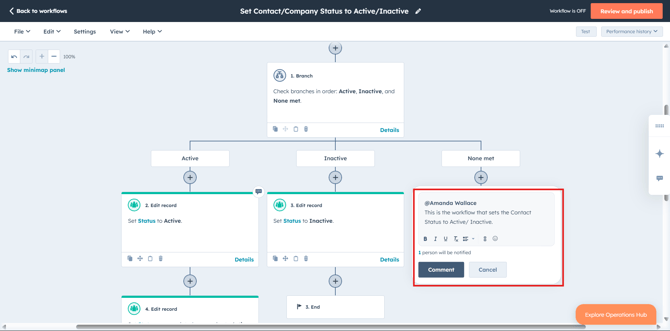
- The person you have mentioned will be notified of the comment.
Add comments in the conversations inbox
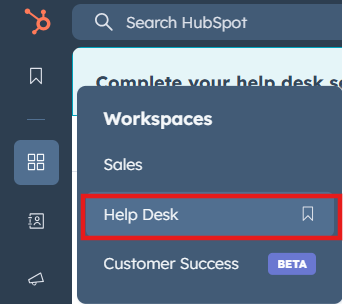
- In your HubSpot account, navigate to helpdesk tool or other Conversation inbox, you want to add comment on.
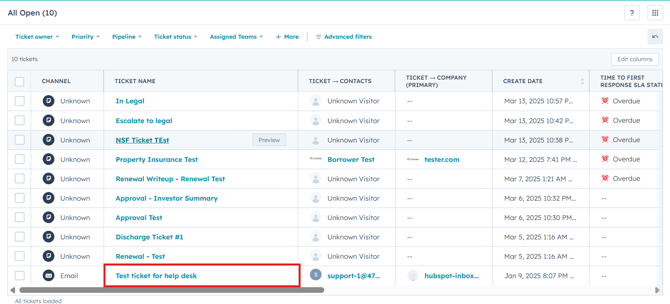
- Click on the ticket name on which you want to add comment.
- In the conversation section, click on the comment tab. Type @ and your team member's name, then enter your message
- Click Add comment. A notification will be sent to the team member with a link to the conversation.
These comments are only visible to users in HubSpot and will not be visible to the contact
- Mention your team member in the text box along with the message and click on Comment button.
The person you have mentioned will be notified of the comment.
Add comments on Dashboard
- Navigate to dashboards from Reporting section.
- Select the dashboard on which you want to add comment.
- Click on the Comment icon present on the right side of the dashboard.

- Write the comment in text box and click on comment button.
The mentioned user will receive a notification based on their notification preferences.
Add comments in a CRM Record
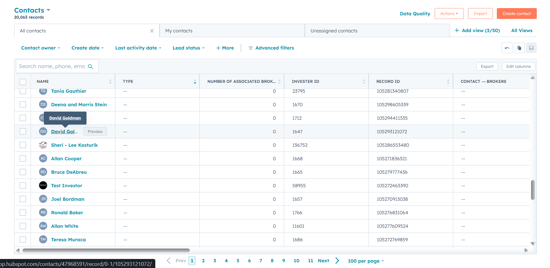
- In your HubSpot account, Navigate to CRM and select Contacts or any other CRM Object.
- Search for the record on which you want to mention your team mate and click on its name to open the detailed record.
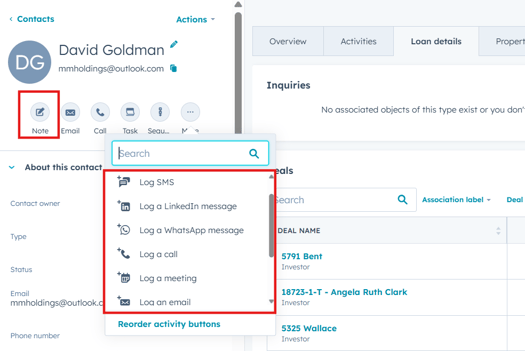
- In the opened Contact record, select Notes or any Log activity in which you want to mention or add comment for team member.
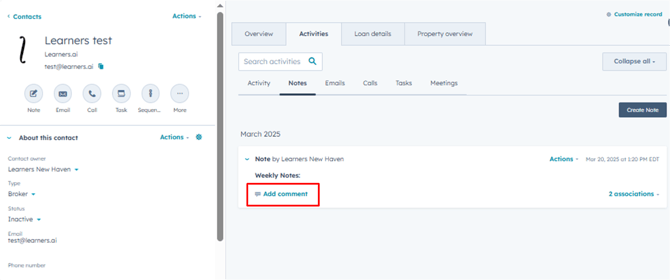
- Click on "Add comment" to leave a comment on the activity. You can write comments about the contact record or the specific activity, and mention team members by typing '@' followed by their name or email. Select the team member you wish to communicate with from the dropdown list.

- The mentioned user will receive a notification based on their notification preferences.
- Similarly, comments can be added on already logged activities such as notes, calls, meetings, tasks etc.