%20MA%20.png?width=2550&height=208&name=NHMC%20Header%202023%20(2550%20%C3%97%20208%20px)%20MA%20.png)
Logging Emails
-
Navigate to the contact, company, or deal record where you want to log the email.
-
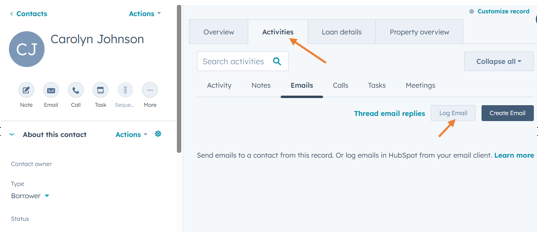
Navigate to the Activities tab of the contact or deal record.
-
Click on Emails to filter email logs.
- Copy the link to the email you want to Log

-
Click on Log Email, as shown in the interface, to manually log an email interaction.
-
Enter the necessary details, paste the link to the email in the log notes.
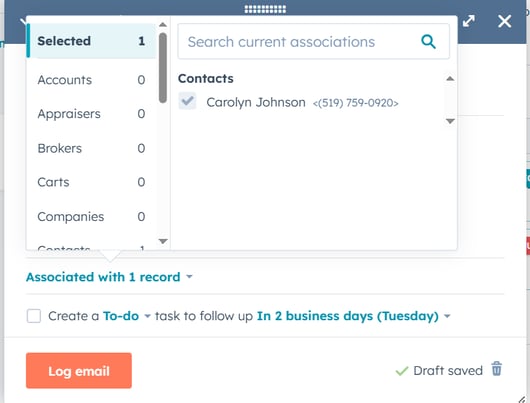
- Click on Associated with 1 record to expand the list of possible records.

- Use the Search current associations field to find relevant records, such as additional contacts, deals, or companies.
-
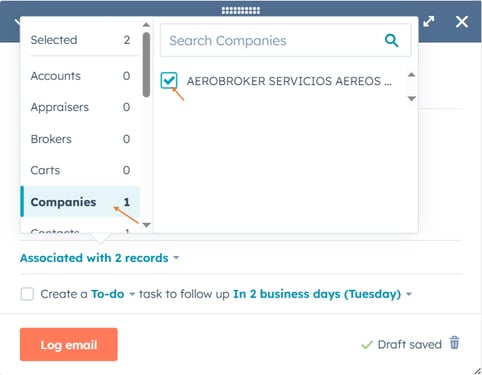
Check the box next to each record you want to associate with this email. For example if you want to associate company, you can simply select companies and check the company you want to associate.
-
Click on Log Email to log the email .
Logging Calls
-
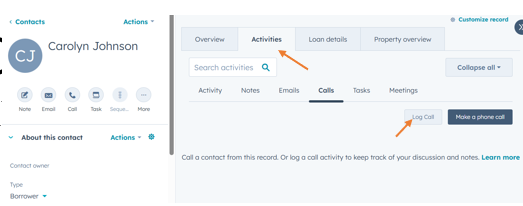
Navigate to the Activities tab of the record.
-
Click on Calls to filter call logs.
-
Click on Log Call, as shown in the interface, to manually log a call interaction.
-
Enter the necessary details
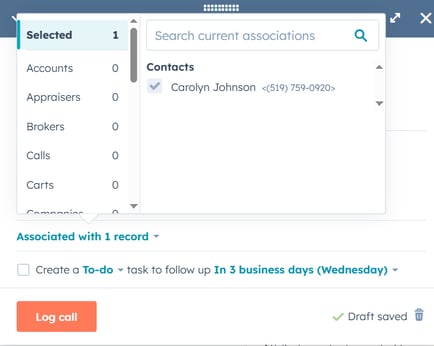
- Click on Associated with 1 record to expand the list of possible records.

-
Use the Search current associations field to find relevant records, such as additional contacts, deals, or companies.
-
Check the box next to each record you want to associate with this call. For example if you want to associate broker, you can simply select brokers and check the broker you want to associate.

-
Click on Log Call to log the call .
Logging Meetings
-
Navigate to the Activities tab of the record.
-
Click on Meetings to filter meeting logs.

-
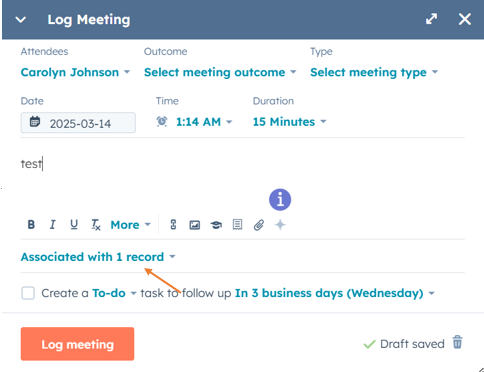
Click on Log Meetings, as shown in the interface, to manually log a meeting interaction.
-
Enter the necessary details
- Click on Associated with 1 record to expand the list of possible records
-
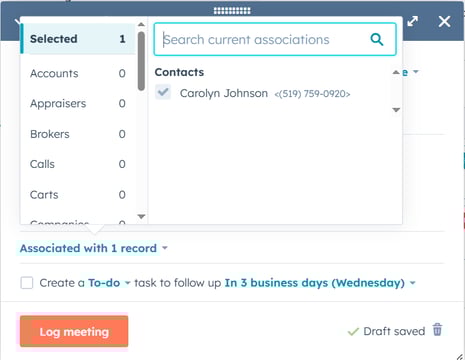
Use the Search current associations field to find relevant records, such as additional contacts, deals, or companies.
-
Check the box next to each record you want to associate with this meeting. For example if you want to associate any account, you can simply select accounts and check the account you want to associate.

-
Click on Log Meeting to log the meeting.
Why Choose ‘Include Recent Activity’ When Creating a Ticket?
When creating a ticket and associating it with a contact or company, the activity you include (such as emails, calls, meetings, and notes) is important for several reasons:
-
Provides Context for Service and Support Teams
- Ensures agents have relevant details like past emails, calls, and notes.
- Helps understand previous interactions related to the issue.
-
Improves Efficiency and Resolution Time
- Reduces the need for repeated explanations from customers.
- Speeds up ticket handling by providing necessary information upfront.
-
Enhances Customer Experience and Tracking
- Ensures consistency in support responses.
- Helps track issue history for better reporting and follow-ups.

Final Thought
Adding recent activity can enhance visibility and streamline support, but it’s crucial to ensure that only relevant interactions are included.
If the ticket should only contain new, directly related communications, adding all recent activity may overwhelm it with unrelated interactions.
When in doubt, manually selecting which notes, emails, or calls to associate with the ticket can prevent unnecessary complications in conversations and automation.