%20MA%20.png?width=2550&height=208&name=NHMC%20Header%202023%20(2550%20%C3%97%20208%20px)%20MA%20.png)
Here’s a step-by-step guide on how to merge records in HubSpot. We’ll specifically walk you through the process of merging contact records. However, the same steps can be applied to merge other objects, such as companies, deals, or tickets, within HubSpot using a similar approach.
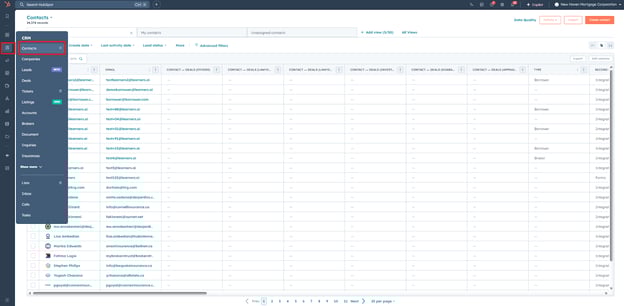
- Navigate to the CRM section in the left-hand navigation bar, then click on Contacts.
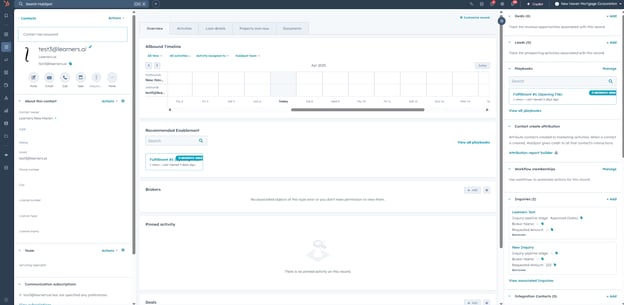
- Open the contact you wish to merge from the Contacts list.
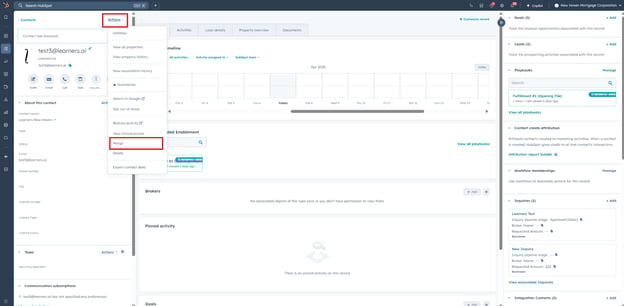
- From the Actions menu, select Merge.
- Choose the contact to merge with the selected contact.
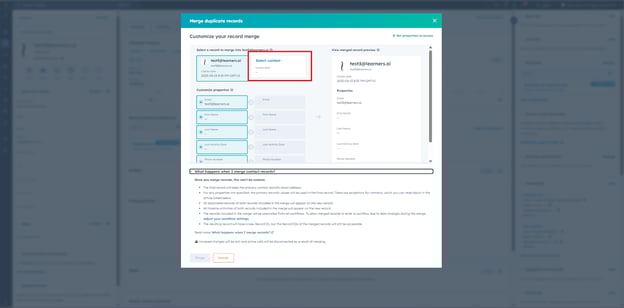
- Review the properties and then select Merge.
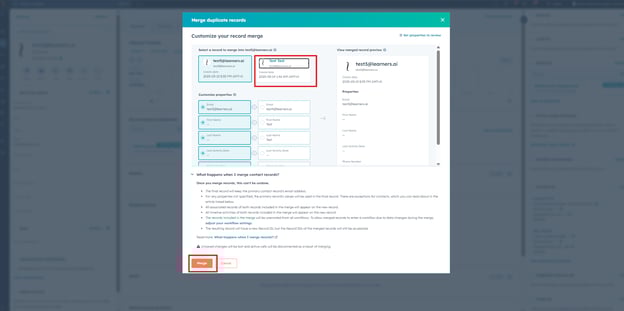
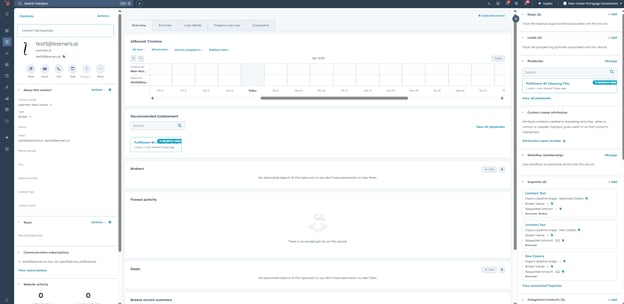
- The contacts are now merged.
What Happens When You Merge
- Record ID: New ID assigned; original IDs redirect to the new record.
- Create Date: Oldest record's date is retained.
- Activities & Associations: Combined from both records.
- List Membership: Secondary record removed from static lists; active lists recalculate.
- Form Submissions (Contacts): Cookies combined; secondary email attached to primary.
- Workflow Enrollment: Both records are unenrolled.
Object-Specific Merge Logic
- Companies
- Domain Name: Primary's stays; secondary becomes a secondary domain.
- Lifecycle Stage: Furthest down the funnel is kept (e.g., Customer over Lead).
- Analytics Properties: Re-synced and totals combined.
- Contacts
- Email: Primary contact's email stays; secondary becomes a secondary address.
- Lifecycle Stage: Furthest down the funnel is kept.
- Form Submission Counts: Values are added together.
-
- Analytics Properties: Re-synced and combined.