%20MA%20.png?width=2550&height=208&name=NHMC%20Header%202023%20(2550%20%C3%97%20208%20px)%20MA%20.png)
Create and add snippet
Snippets are short, reusable text blocks that can be used on contact, company, deal, ticket, and custom object records. You can insert snippets into email templates, chat conversations, and when logging an activity or note.
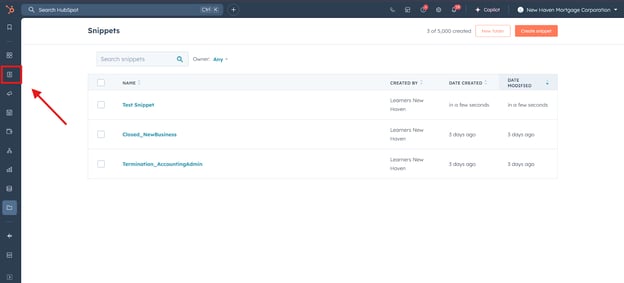
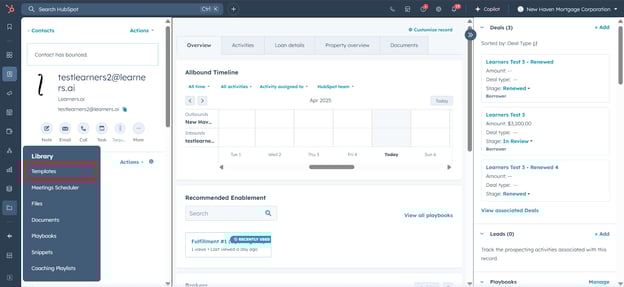
- Navigate to "Library" section from left sidebar in your HubSpot account.
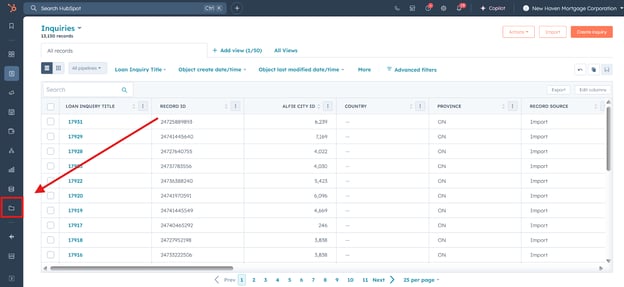
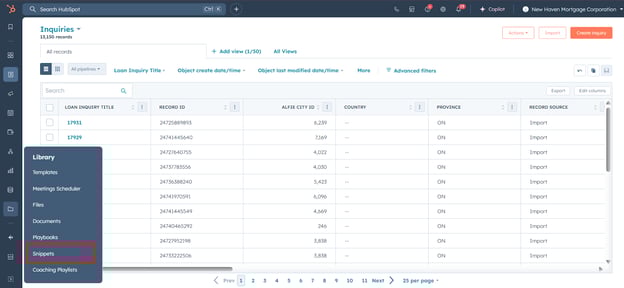
- Click on "Snippet".
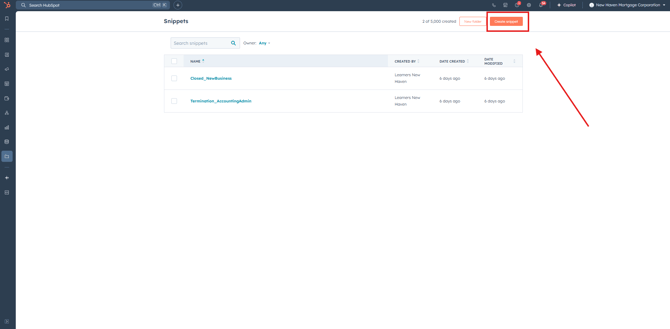
- Click on create "Snippet".
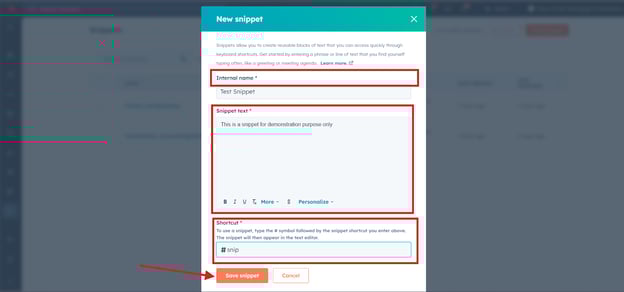
- Give the snippet an internal name for HubSpot. Then, add the text you want in the snippet and add the shortcut you will use to add the snippet in any text. Click on "Save Snippet".
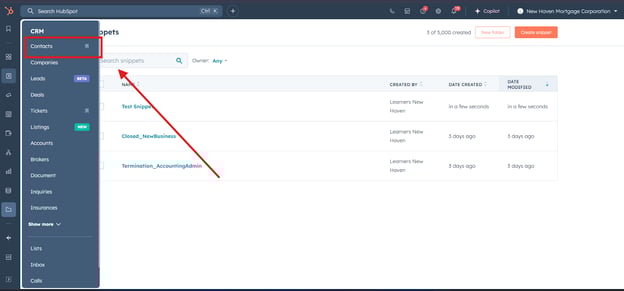
- Navigate to "CRM".
- Open "Contact" or any other CRM object.
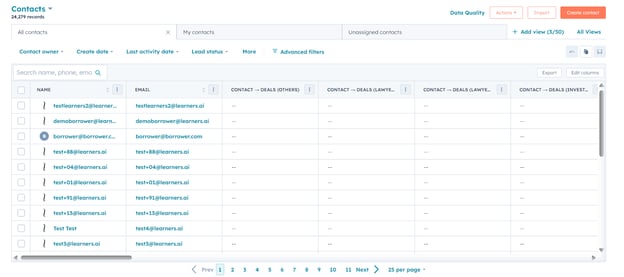
- Choose a contact.
- Select the activity where you want to add the Snippet. In this case, we will select "Note".
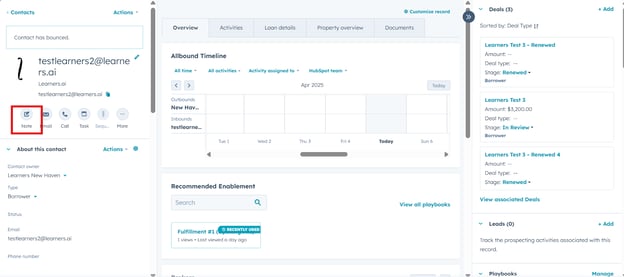
- Add the snippet by clicking the icon and choosing your snippet, Alternatively, write the shortcut with # and click on your snippet to add it.
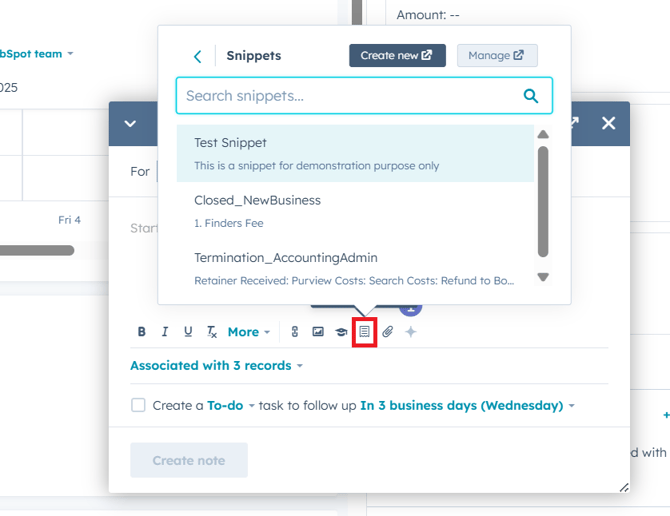
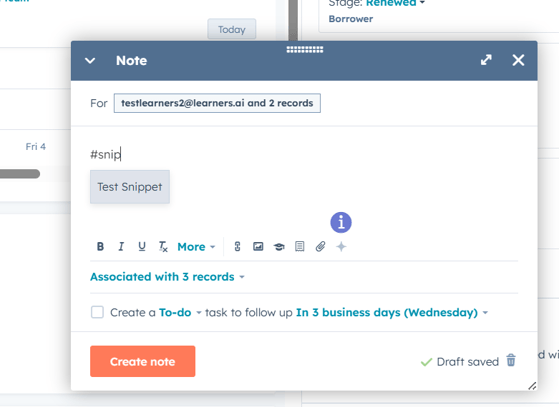
- You have added the snippet.
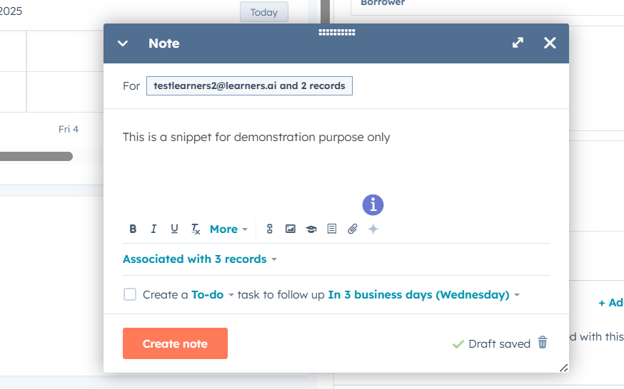
Similarly, snippets can also be added in other engagements like SMS, emails, tasks etc.
Create and Use Email templates
With templates, you can save repetitive email content as an email template. You can access sales templates from the CRM or when sending an email from your inbox.
- Go to "Library" and click on "Template".
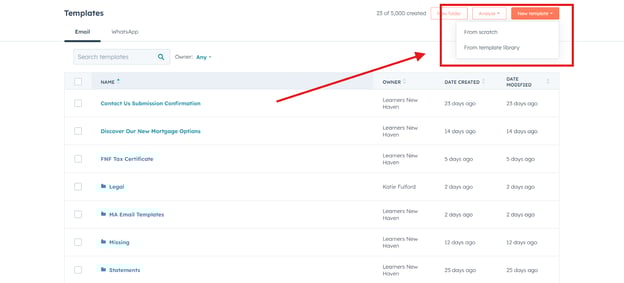
- Click on "New Template" and select "From Scratch" to start creating an email template.
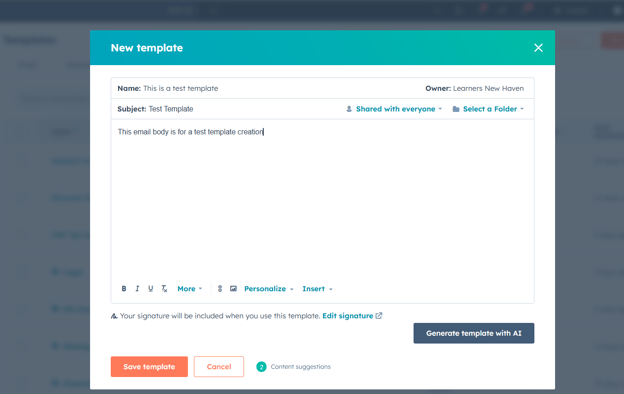
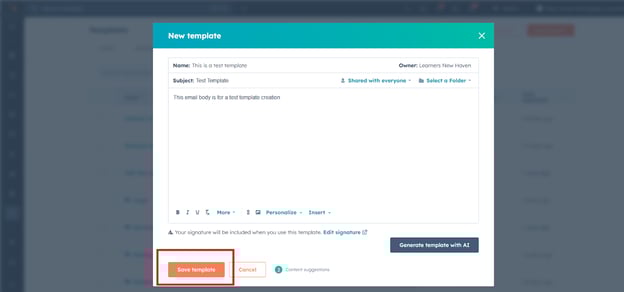
- Add the name, subject, and body of the template.
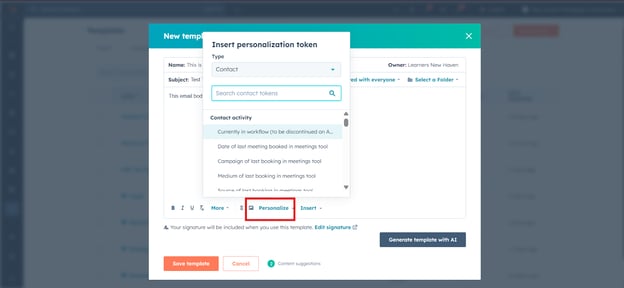
- You can add personalization tokens in the email template if required by using Personalize button and selecting properties from HubSpot.
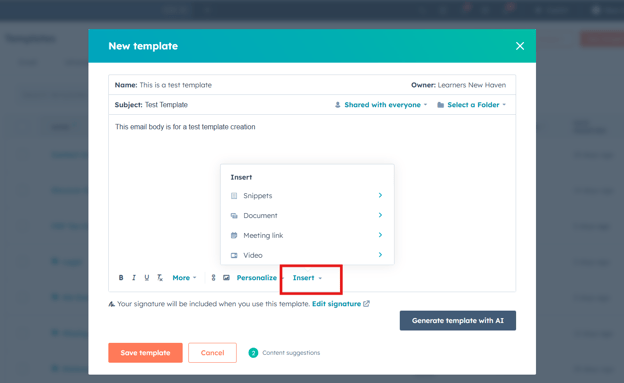
- You can also insert documents, snippets, meeting links, and videos in your email template.
- Once you have configured the email template, click "Save".
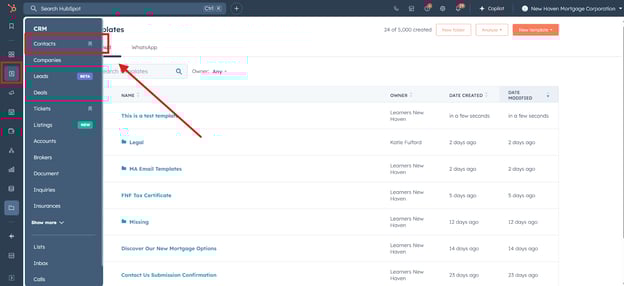
- Go to CRM and then "Contact".
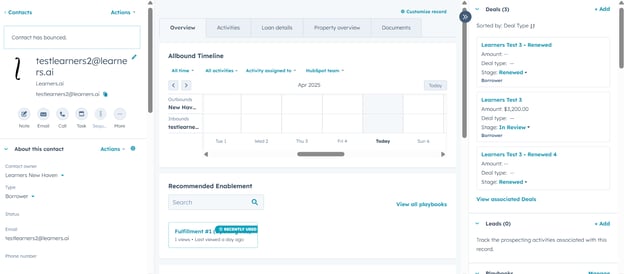
- Select and open a contact record.
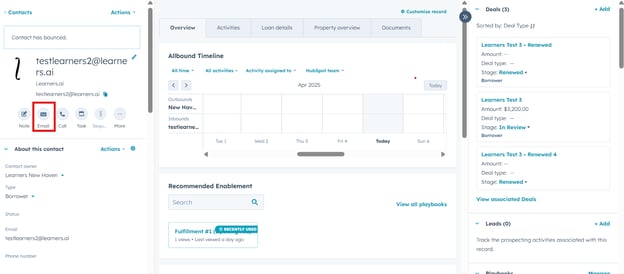
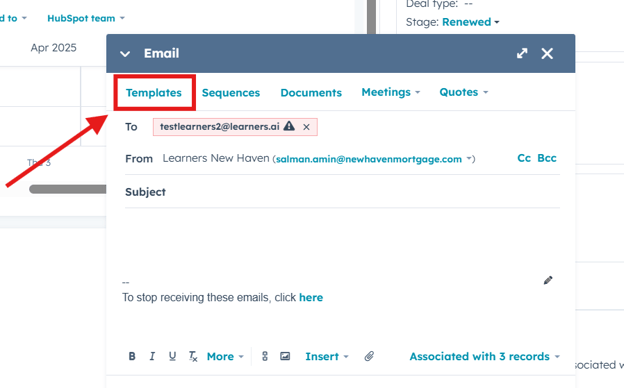
- Click on "Email".
- Click "Add Template" option to use the Template.
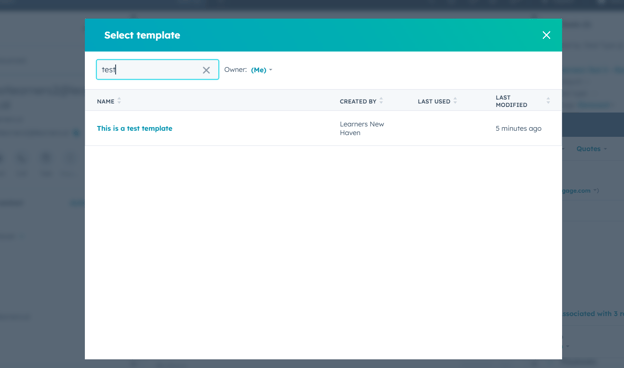
- Select your template.
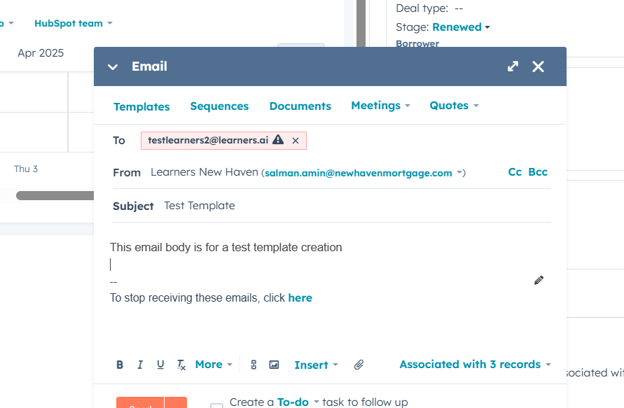
- Your template will be inserted in the email.
Conclusion
By following these steps, you can easily create and utilize snippets and templates in HubSpot to streamline your communication process. Whether you’re adding personalized notes through snippets or sending customized emails with templates, these tools help ensure efficiency and consistency in your outreach. With just a few clicks, you’ll be able to save time, maintain strong customer relationships, and keep your team’s messaging cohesive.