%20MA%20.png?width=2550&height=208&name=NHMC%20Header%202023%20(2550%20%C3%97%20208%20px)%20MA%20.png)
Overview of Steps
- Create a new appraiser company and staff in MA
- Update rank in HS
To Create a New Appraiser Company in Mortgage Automator
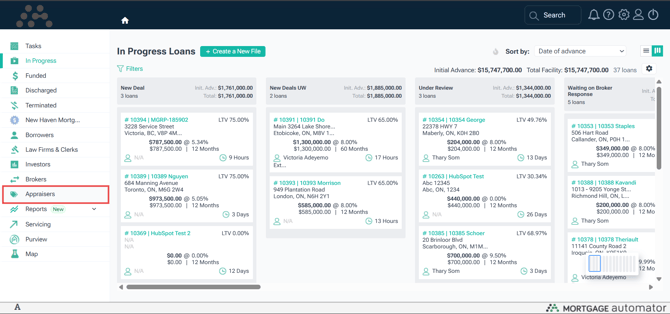
- From the left-hand sidebar in Mortgage Automator, click on Appraisers.
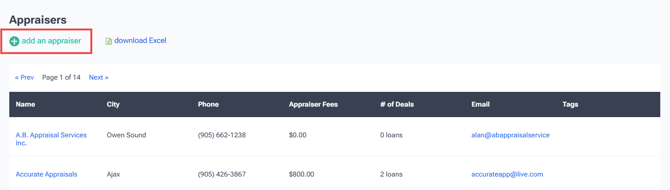
- On the Appraisers dashboard, click the ‘+ Add an Appraiser’ button.
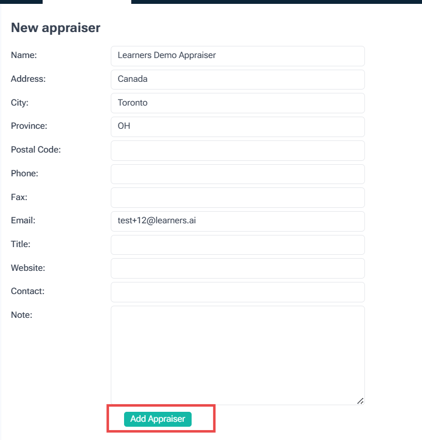
- Fill in all required information for the new Appraiser company, then click ‘Add Appraiser’ to save.
- Once the company is created, scroll to the Staff section. Enter the contact details for an appraiser and click ‘Add’.

- To add more contacts for this Appraiser company, click ‘+ Add Another Appraiser’ in the Staff section.

- Associate the added Appraiser contacts with the relevant Mortgage Loan records as needed.
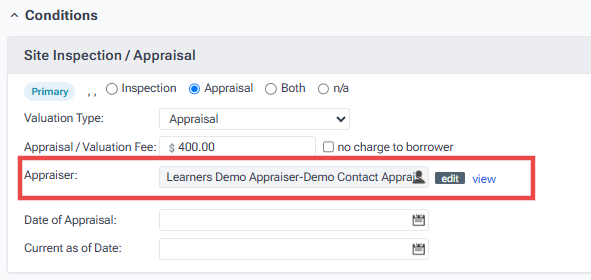
- Appraiser Company and Contact records will automatically sync to HubSpot after a short delay.
Adjust Appraiser Company and Staff Rank
-
To update the rank of the newly created Appraiser company:
-
Navigate to CRM → Companies
-
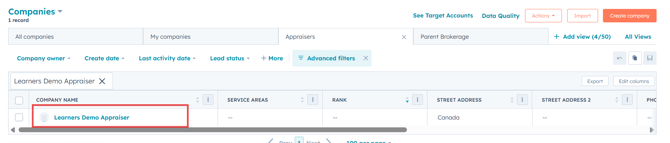
Switch to the Appraisers view and search for the company
-
Update the rank directly from the dashboard

-
-
To edit the service area for an Appraiser contact:
-
Navigate to CRM → Contacts
-
Switch to the Appraisers view and locate the desired contact

-
Scroll to the right side of the dashboard to update the Service Area field
Note: The Rank field is automatically populated based on the associated company’s rank.

-