%20MA%20.png?width=2550&height=208&name=NHMC%20Header%202023%20(2550%20%C3%97%20208%20px)%20MA%20.png)
HubSpot offers two main ways to include images in your signature:
-
Using the Simple (Visual) Editor – No coding required.
-
Using the HTML Editor – Ideal for users who want more control.
In this guide, you’ll learn step-by-step how to insert images into your signature using both methods, along with image best practices.
1. Using the Simple (Visual) Editor
Steps:
-
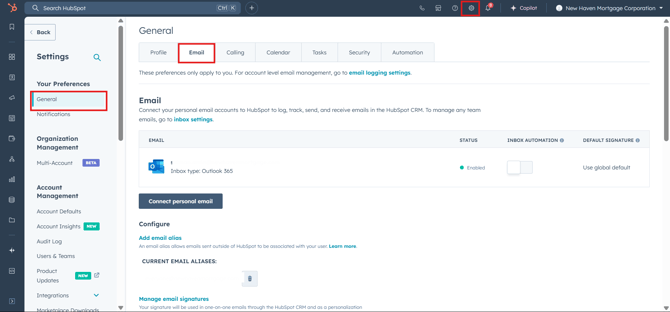
In your Hubspot Account, Navigate to settings -> General and select Email tab.
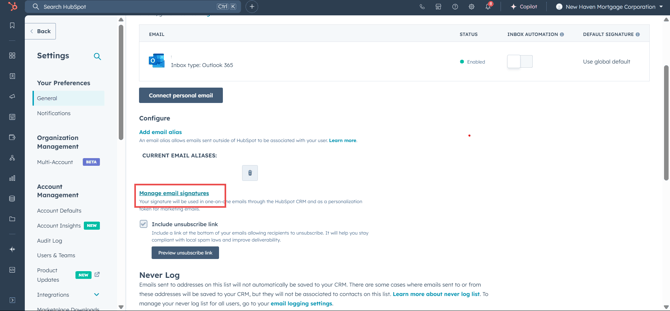
- Click on 'Manage Email Signatures' option.
-
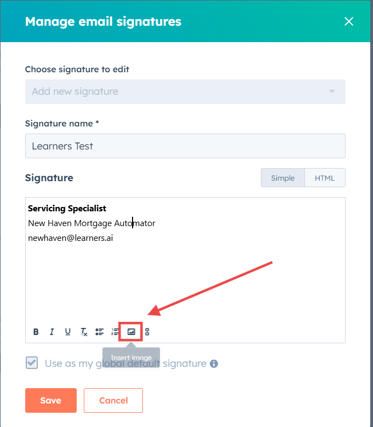
This opens a visual editor where you can add your email signature name and signature. Click on the Image icon from the bottom toolbar to Insert an image in the signature.
-
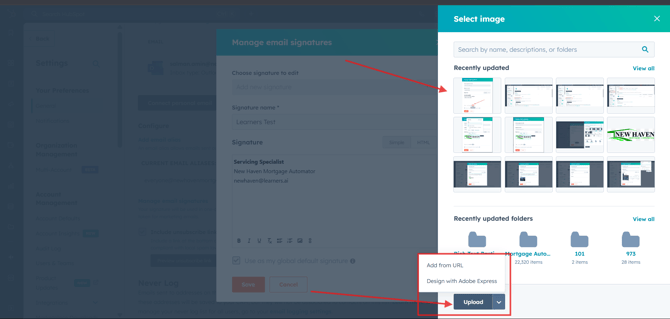
This will open a Select image tab on your screen. You can insert an image using any of the following options:
-
Select an image from the already uploaded images in your HubSpot account files.
- Use the Upload button to upload a new image.
- Add image from URL
-
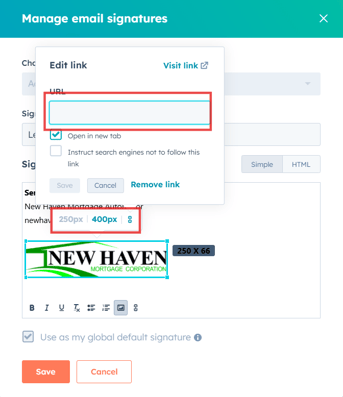
- After inserting the image, you can click on it to
-
-
Resize it.
-
Add a hyperlink (e.g., link to your website).
-
6. Once everything is configured, click on the Save button to save your email signature.
2: Using HTML Code for More Control
Steps:
- In your HubSpot Account, Navigate to settings -> General and select Email tab.
- Click on 'Manage Email Signatures' option.
-
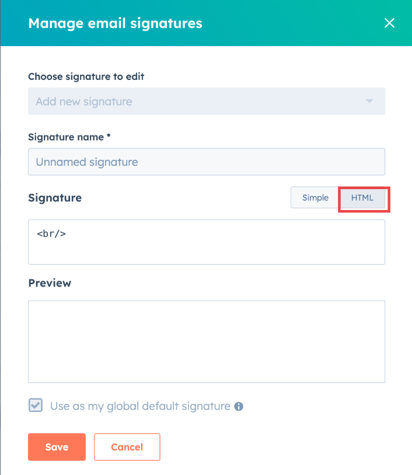
Click on the “HTML” tab to directly edit the code of your signature.
-
Insert the
<img>Tag
Use the following code snippet:<img src="YOUR_IMAGE_URL" alt="Description of your image" width="YOUR_DESIRED_WIDTH" height="YOUR_DESIRED_HEIGHT">Tag Breakdown:
-
srcattribute:This specifies the URL of the image file. You'll need to host the image online (e.g., on a server, Imgur Flickr, etc.) and use that URL. -
alt: Descriptive text shown if the image can’t be displayed. -
width/height: Controls the size of the image in the signature.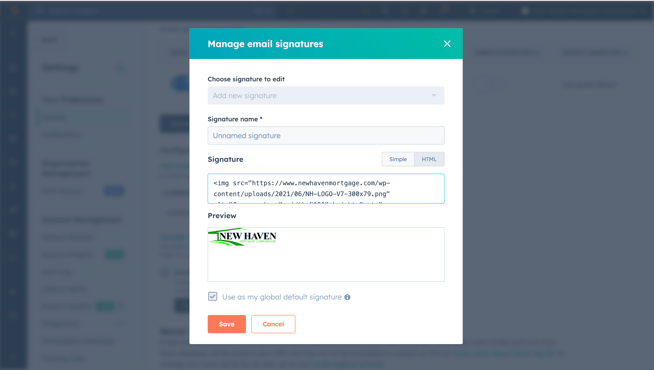
-
- Click Save to apply changes.
Best Practices for Email Signature Images
-
Optimize File Size: Keep the image under 200 KB to avoid slow loading.
-
Use Standard Formats: Stick to
.png,.jpg, or.giffor wide compatibility. -
Use Alt Text: Always include descriptive alt text for accessibility and fallback.
-
Test Before Sending: Send a test email to yourself to see how it looks across Gmail, Outlook, Apple Mail, and mobile devices.