%20MA%20.png?width=2550&height=208&name=NHMC%20Header%202023%20(2550%20%C3%97%20208%20px)%20MA%20.png)
Step 1 – Access User Settings
1. Log in to HubSpot (New Haven instance) with admin rights.
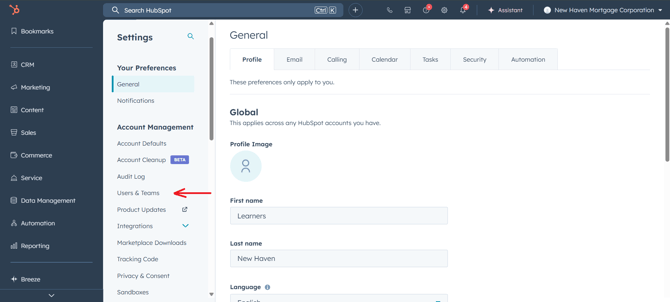
2. Click the Settings (gear icon) in the main navigation bar.
3. In the left-hand menu, go to Users & Teams.
Step 2 – Add a New User
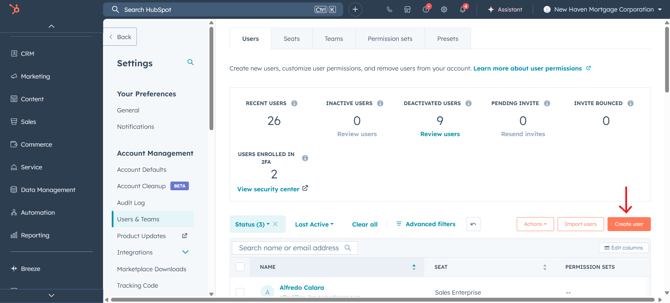
1. Click Create user.
Step 3 – Add User Email
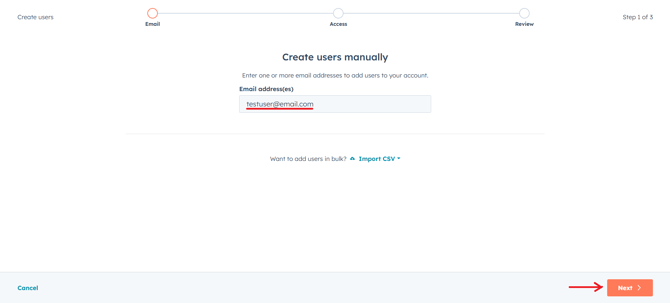
1. Enter the user’s email address.
2. Select Next to proceed.
Step 4 – Assign Roles
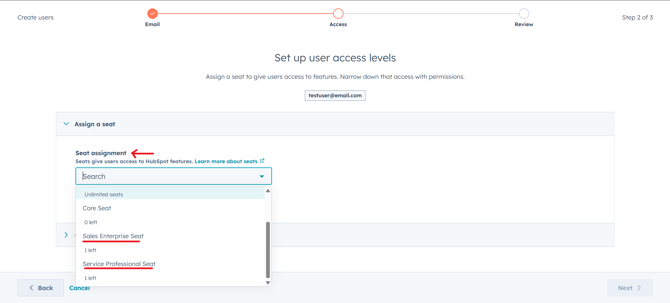
1. Choose the correct role (e.g., Sales, Service, Admin) based on the user’s responsibilities.
Step 5 – Assign Permissions
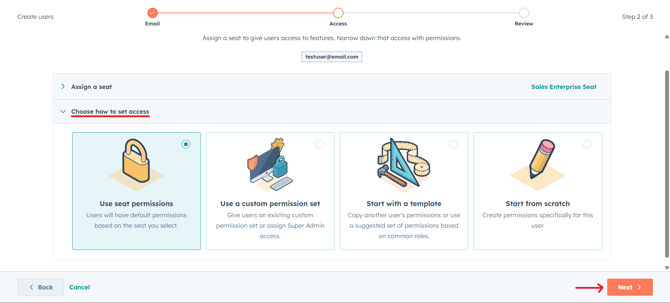
When adding a new user, choose how to set their permissions:
Options available:
-
Use seat permissions – Apply the default permissions for the selected seat (e.g., Sales Enterprise Seat).
-
Use a custom permission set – Apply an existing permission set or grant Super Admin access if approved.
-
Start with a template – Copy another user’s permissions or use a role-based template.
-
Start from scratch – Build a custom permission setup for this user.
Important: Always follow New Haven’s role matrix or approval process before granting elevated permissions like Super Admin.
Step 6 – Send Invitation
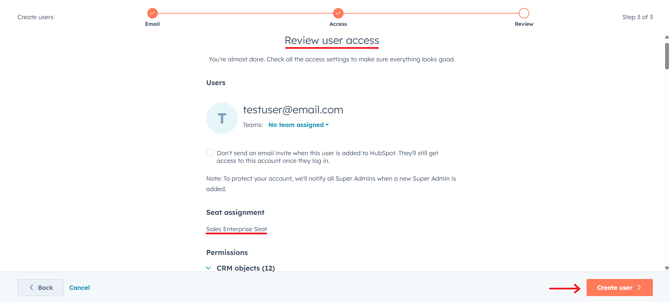
1. Review the user’s details and permissions and send invite.
2. Click Create User.
3. The user will receive an activation email with login instructions.
Step 6 – Post-Activation Checks
After activation, confirm that:
-
The user can log in successfully.
-
Permissions align with their role.
-
Manager has confirmed the setup.
Once the user is activated with the correct permissions and ownership, the setup is complete — ensuring they can work seamlessly within New Haven’s HubSpot instance.