%20MA%20.png?width=2550&height=208&name=NHMC%20Header%202023%20(2550%20%C3%97%20208%20px)%20MA%20.png)
Step 1: Navigate to the Deals Object
-
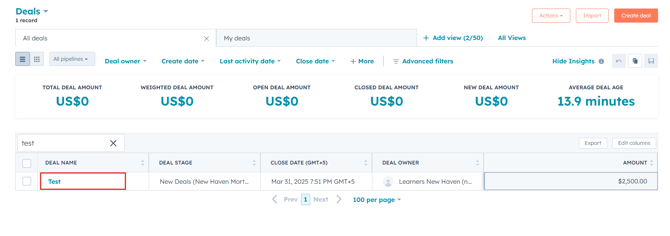
In HubSpot, navigate to the Deals object.
-
Search for and click on the desired deal's name to open its record.
Step 2: Get Documents Link
-
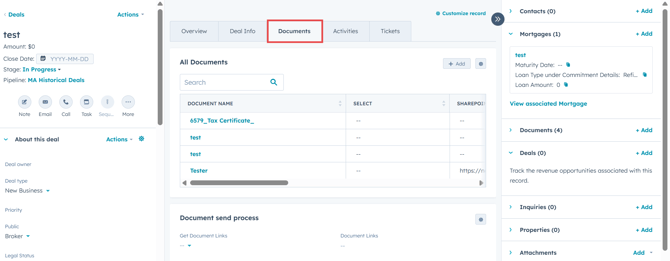
Within the deal record, click on the Documents tab located in the middle column.
-
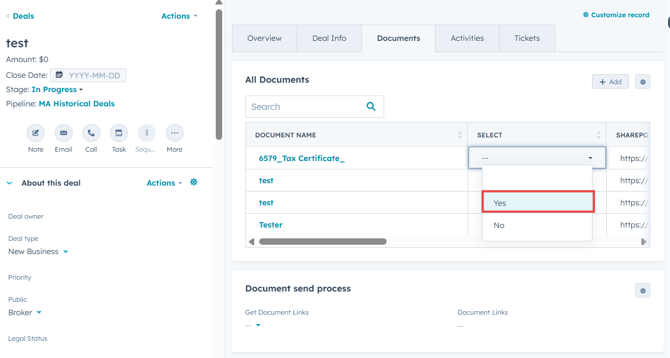
From the associated documents, use the Select Property to choose the document properties for which you want the URL.
-
Ensure the SharePoint URL is available for the attached documents.
-
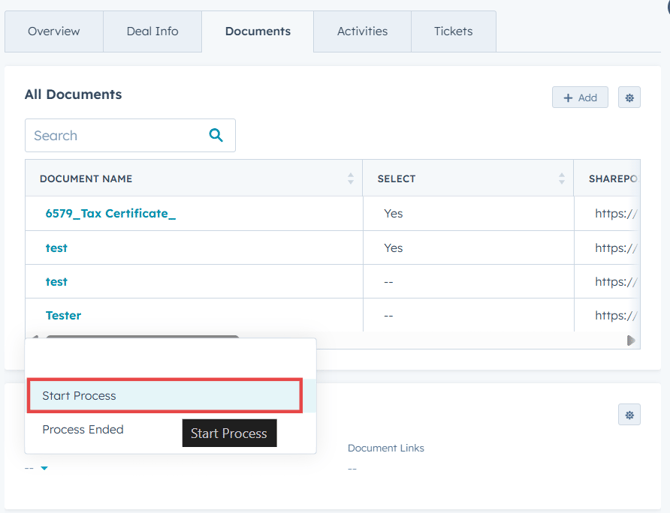
- Select the Start Process option in 'Get Documents Link' property under the Document Send process card.
-
This action updates the selected document’s URL in the Document Links property of the deal record.

NOTE:If the SharePoint URL is not immediately available, the process will wait for one hour. The document link property will then be updated after this waiting period. If the SharePoint URL is still not provided within one hour, the Document Links process will fail and have to be started again after adding the SharePoint URLs.
Step 3: Compose a New Email
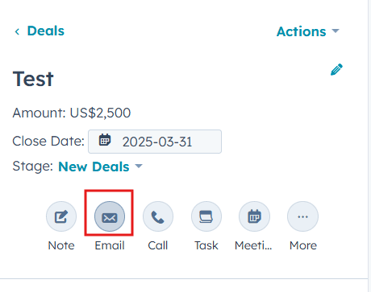
- Click on the Email icon within the deal’s record to begin composing an email.
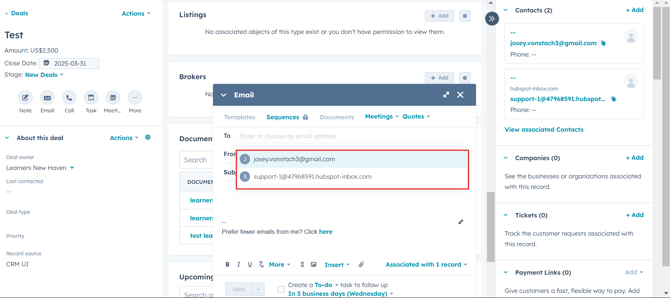
- If the deal has more than one contact associated with it, you can select to which contact you want to send the email.
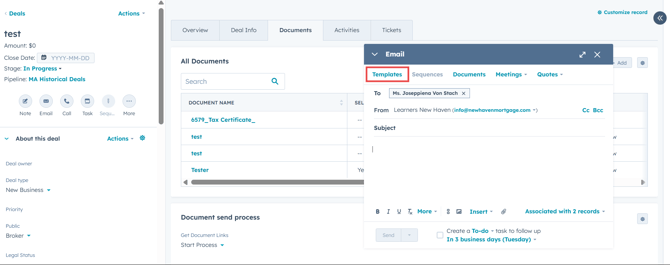
- Click on the Template option in the email editor.
-
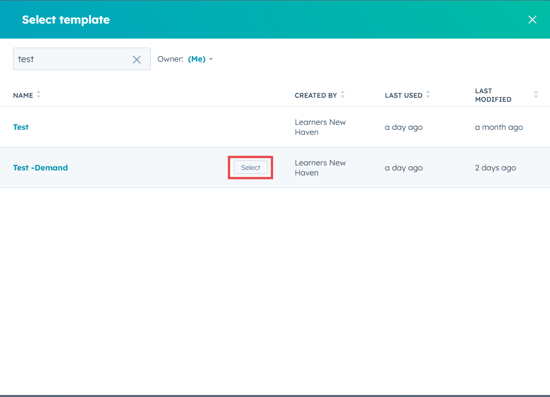
In the Select Template pop-up window, search for and select the desired email template from your HubSpot account.
Step 4: Review and Send the Email
-
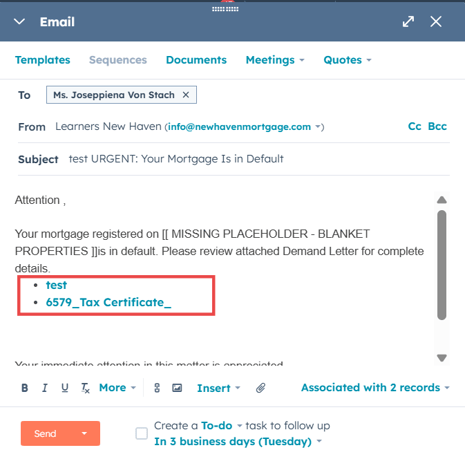
The document link will now appear automatically in the email editor, integrated as a Personalization Token within your chosen template.
-
After reviewing your email content, send the email to the recipient along with the document link.